
Want to keep your important data safe from possible data loss? Don't know how to make a backup on Mac? To keep your data safe from data loss, the best thing to do is to make backup copies. That's why we are going to tell you how to make backups on Mac.
Time Machine
Apple to help the user to keep their information safe has set the Time Machine function, which is a Mac function to make backups and keep our information safe. This function is installed by default on the system. Here we will tell you the steps to make a backup correctly:
- First, connect a storage device, as a USB to your Mac.
- Then you can access Time Machine from its menu which is on the taskbar or you can access it from the «Apple menu» under «System Preferences» and finally by clicking on Time Machine. «Apple Menu«⇒»System Preferences«⇒»Time Machine«
- Next, select external device where you want to save the backups.
- Finally, select the disk you want to back up. After that, your Mac will automatically back up your disk from time to time.
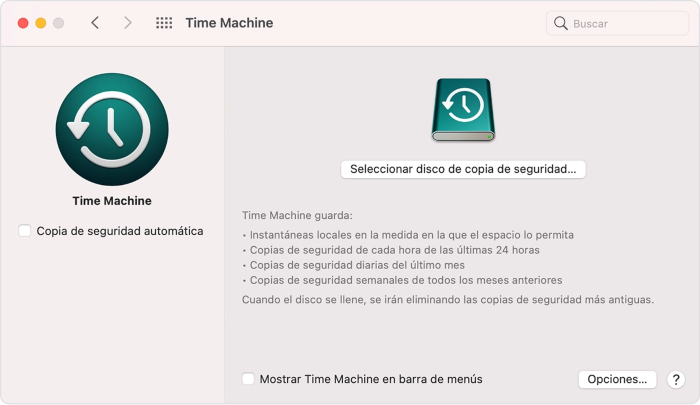
The security copies are incremental, This means that only new data since the last backup will be saved. In addition, you will be able to make security copies manually from the Time Machine menu, which can be activated from the tab shown in the image above.
If you want do not perform a backup copy of a particular folder or file, you can do it from the «Time Machin preference panele» on the «Options«. Also there you will be able to do the following:
- Select which only the copies if the Mac is connected to the power supply.
- Activate the notifications that you please contact when some old copies are deleted.
If you have any questions about the content of this article or any other questions about Mac, please contact us. here. Or in http://Datasystem.es