
Did you know that you can set up and customize the home screen of your Apple TV to suit your needs? The home screen is the first place you see when you turn on your device, and customizing it can make your experience much more comfortable and faster. In this guide, we show you how to do it step by step.
1. Change the wallpaper of the Apple TV
One of the first things you can do when set up and customize the home screen of your Apple TV is to change the background. You can choose from several default options or use a photo from your gallery. To do this, go to «Settings», then select «Wallpapers» and choose the option you prefer. This will give your Apple TV a more personal touch.
2. Organize the applications of the Apple TV
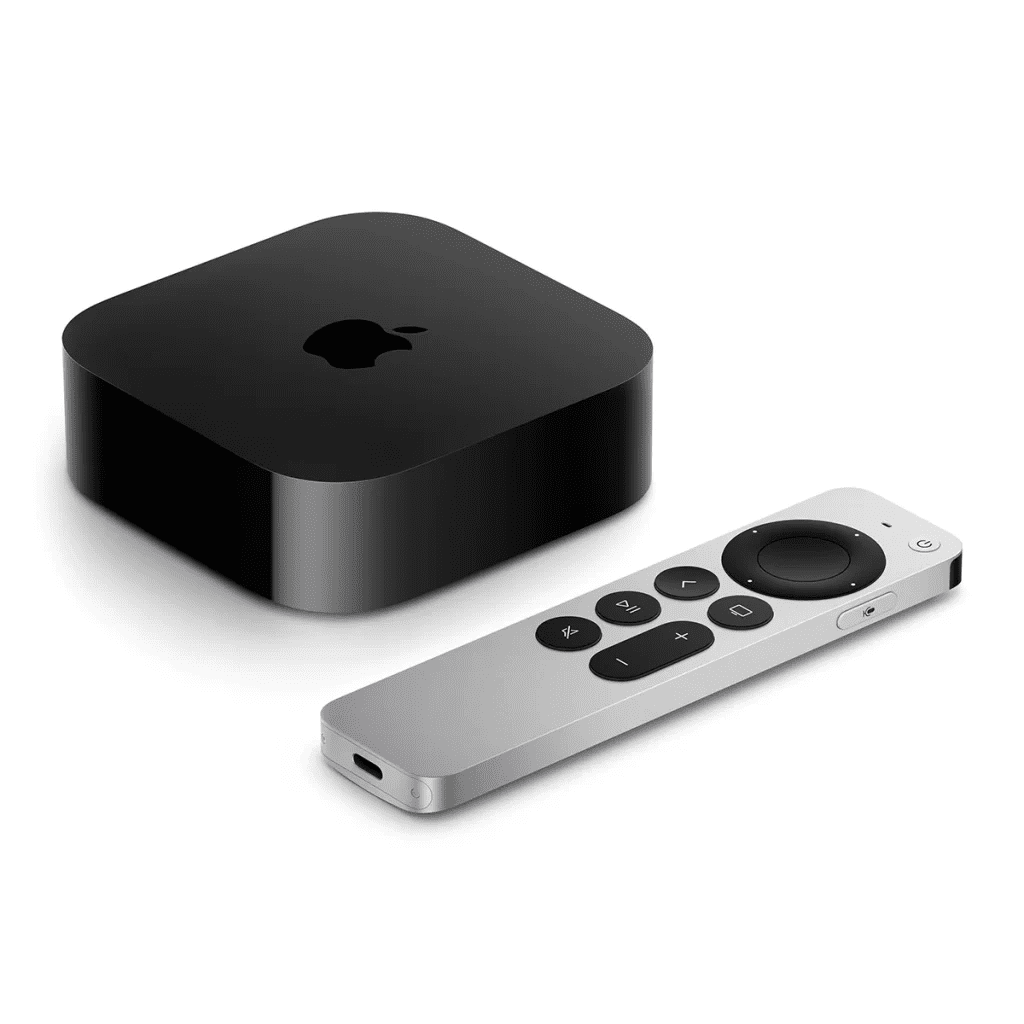
Just like on your phone, you can rearrange the apps on your Apple TV Home screen. To do this, select an app, press and hold the select button on the remote control and move the app to the desired location. This allows you to have the apps you use the most at the click of a button. Configuring and customizing your Apple TV home screen it has never been so easy
3. Create folders on Apple TV
If you have a lot of applications, you can create folders to keep everything organized. Just select an application and hold it down until you can move it. Then drag it over another app to create a folder. This way, you can group apps by type, such as «Games» or «Entertainment». This makes your home screen cleaner and neater.
4. Hide unwanted applications
Some applications may not be of interest to you. If you don't want to see them on the home screen, you can hide them. Go to «Settings», then «General» and select «Manage apps». From there, you will be able to hide the apps you don't want to see. This way, you will only see the apps you actually use. This is a way to set up and customize the home screen of your Apple TV efficiently
5. Adjust the visibility of notifications
If you prefer a cleaner, distraction-free space, you can adjust the visibility of notifications. In «Settings», go to «Notifications» and decide which apps can display alerts on your home screen. This way, you will have a quieter and less invasive experience.
6. Customize the menu bar of the AppleTV
On your home screen, the menu bar displays shortcuts. You can customize it to display only the most useful icons. This will save you time and allow you to quickly access what you use most. To do this, go to «Settings», then «Menu bar» and adjust the options according to your preferences.
7. Change the style of animations
If you prefer a faster or smoother experience, you can adjust the interface animations. Go to «Settings», then «General» and select «Accessibility». From there, you will be able to choose options that make the animations faster or smoother. This is useful if you are looking to improve the speed of navigation or the fluidity of movements on the screen.
Conclusion
As you can see, set up and customize the home screen of your Apple TV is a quick and easy process. With just a few simple steps, you can make your device adapt to your needs and lifestyle - feel free to try these changes and enjoy a more personalized and comfortable experience on your Apple TV!
Learn more http://Datasystem.es or in https://repararmac.eu/wp-admin/post.php?post=3661&action=edit