
Replacing a hard disk drive (HDD) with an SSD is one of the most effective ways to improve the performance of your PC. An SSD is faster, more efficient and quieter. If your computer is feeling sluggish, this upgrade can make a big difference. Here's how to do it step by step.
1. Choose the right SSD
First, you need to choose the right SSD. There are two main types: SATA and NVMe. SATA is more common and fits most PCs. NVMe is faster, but only works in compatible motherboards. Make sure you choose one that fits your computer.
2. Make a backup copy
Before you start, make a backup copy of your data. This is essential to avoid losing important information. You can use an external hard drive, a USB memory stick or the cloud to store your files.
3. Turn off and open your PC
Turn off your PC and disconnect it from the power supply. If you are using a laptop, remove the battery if possible. Then, open the case of your PC or laptop to access the hard drive.
4. Remove the old hard disk
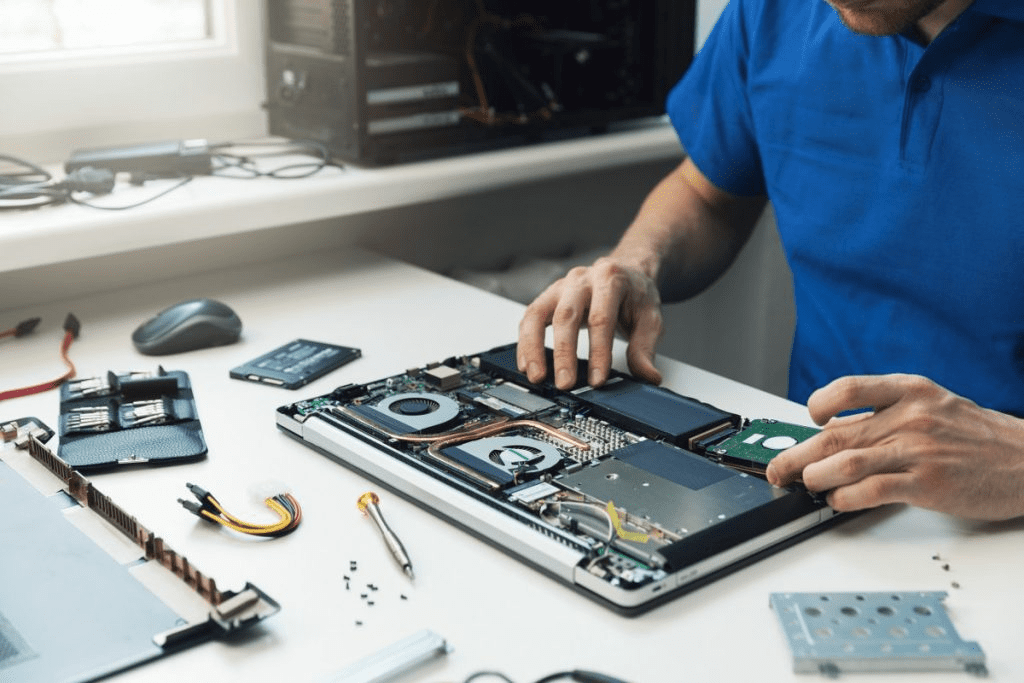
Locate the hard drive and carefully disconnect it. Some models have screws that you must remove to free the disk. Store the hard drive in a safe place in case you need to retrieve any data later.
5. Install the new SSD
Place the SSD in the space where the hard drive was. If the SSD is a 2.5-inch SSD and the space is for a 3.5-inch drive, you will need an adapter. Connect the power and data cables to the SSD securely to ensure a good connection.
6. Install the operating system
Now, you need to install the operating system on your new SSD. If you have a copy of Windows on a USB stick or DVD, connect it to your PC and boot from this media. During the installation, select the SSD as the destination disk. If you already had Windows on the HDD, you can clone the system to your new SSD using specialized software.
7. Configure and enjoy
Once the operating system is installed, reboot the PC. You should notice that your computer boots up much faster. Programs will open instantly, and the overall response will be much faster.
8. Optimizing SSD utilization
Remember not to fill the SSD completely. Leave free space for optimal performance. Also, enable the “TRIM” option to improve SSD lifetime and performance.
Conclusion
Replacing a hard drive with an SSD is an excellent way to improve your PC's performance. Although the process may seem complicated, with these simple steps you will make your computer run much faster. Enjoy a more agile and efficient computer with this simple upgrade.
Learn more http://Datasystem.es or in https://repararmac.eu/wp-admin/post.php?post=3661&action=edit