
I will show you how we can set up dual monitors for more than one display while using a new MacBook Pro or Air device with the M1 chipset.
1) How to connect two monitors to MacBook if it already has a docking station?
If you have configured your desktop or workstation with USB-C Alt Mode, Thunderbolt 3 or a Thunderbolt 4 docking station, extending your display capabilities is a great way to get a better display experience. as simple as downloading the latest DisplayLink driver for macOS. Once you have updated the driver, you can use a Kensington DisplayLink USB-A video adapter to connect your additional monitors.
Some of the compatible Kensington adapters available include:
- USB-A to DisplayPort 4K
- HDMI 4K
- DVI-I/VGA/DVI-D 1080p
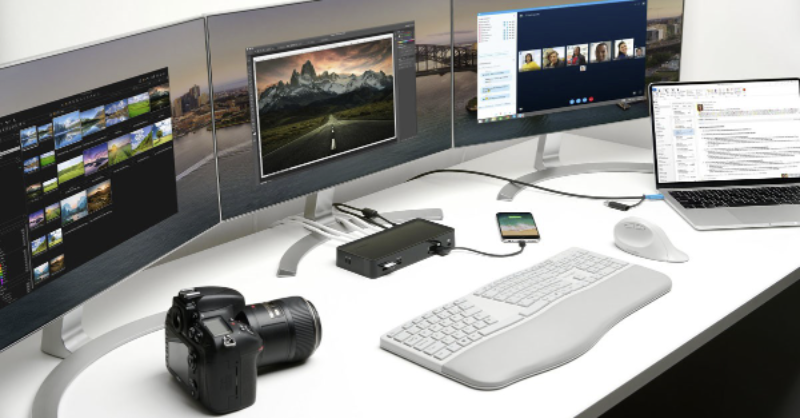
2) MacBook Pro / Air dual monitor setup if you don't have a docking station and don't want to use an adapter.
If you have not used a docking station in the past and do not wish to use an additional adapter, Kensington has a range of USB-C DisplayLink docking stations available. Since these products take advantage of DisplayLink technology, you will not need an additional adapter to connect multiple displays.
Once you have decided which DisplayLink docking station you would like to use, you can choose a DisplayLink to If the DisplayLink software will adapt to your configuration, simply download the latest DisplayLink software. Kensington DisplayLink docking stations include:
- SD4700P (10 ports) Dual 2K Video / 60 W PD / 5 Gbps Docking Station
- SD4750P (13 ports) Dual 4K Video / 85 W PD/ 5 Gbps Docking Station
- SD4780P (12 ports) Dual 4K Video / 100 W PD / 10 Gbps Dock Station
- SD4900P (17 port) 60 W / 10 Gbps 4K / PD Video Triple Docking Station
Again, if you experience any problems after a macOS upgrade, If you have any questions, please check back with DisplayLink e install the latest version of your software. With one of the docking solutions listed above, you can extend your external display capabilities to multiple monitors; resulting in productivity with your M1 configuration.
Native single-screen support with MacBook Pro and Air devices
Apple's decision to provide support for a single native display was difficult to understand. It is possible that it was due to a design constraint, as the company does not say why it took this route. Many users who purchased one of the MacBook Pro or MacBook Air devices in the M1 range quickly rushed to online forums to register their surprise.
The only device that supports more than one native display is the M1 Mac Mini.. Even so, it only supports two external monitors (probably because it does not have its own built-in display included). For any other M1 device, users will have to be a bit creative if their desktop configurations used more than one external monitor.
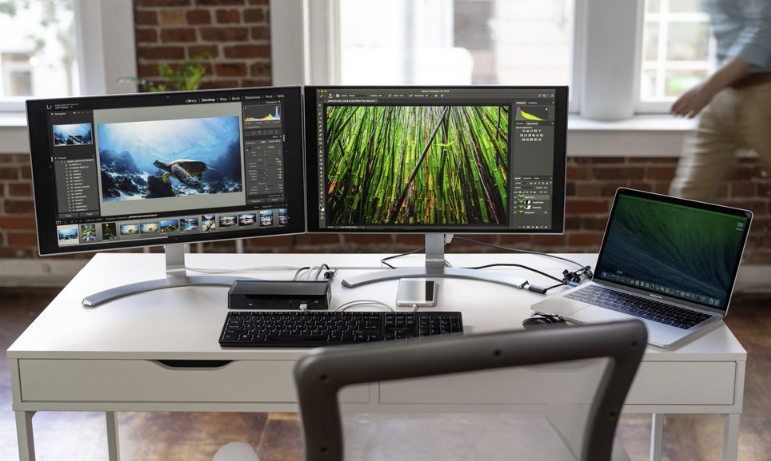
Maximize your productivity with your new MacBook M1
Those of us who use MacBooks for work have relied on their innovation to accelerate our workflows and achieve new efficiencies.
The new MacBooks M1 integrate multiple functions in a single high-performance chipset that goes beyond the processors of the past.Dual Monitors
To build on that, this new design comes with unprecedented performance, giving you 3.9 times faster video processing and 7.1 times faster image processing.
2021 M1 MacBook
The new MacBook Pro 2021 with M1 Pro chip now supports more than one monitor. Kensington has these new MacBooks covered with a range of industry-leading solutions. To highlight some excellent options, the SD5600T Thunderbolt™ 3 docking station supports data transfer speeds of up to Dual 4K at 60 Hz, 40 Gbps and more. If you're looking for the latest technology solution available to pair well with your new MacBook M1 2021, thehe SD5700T Thunderbolt™ 4 docking station is the ideal choice..
This docking station continues to support Dual 4K at 60 Hz, as well as 40 Gbps data transfer rates.
What it does add, however, are three downstream Thunderbolt 4 ports, allowing you to expand your desktop even further at the fastest possible speeds.Dual Monitors
If you have any questions about the content of this article or any other questions about Mac, please contact us. here. or in Datasystem.com
Dual Monitors