
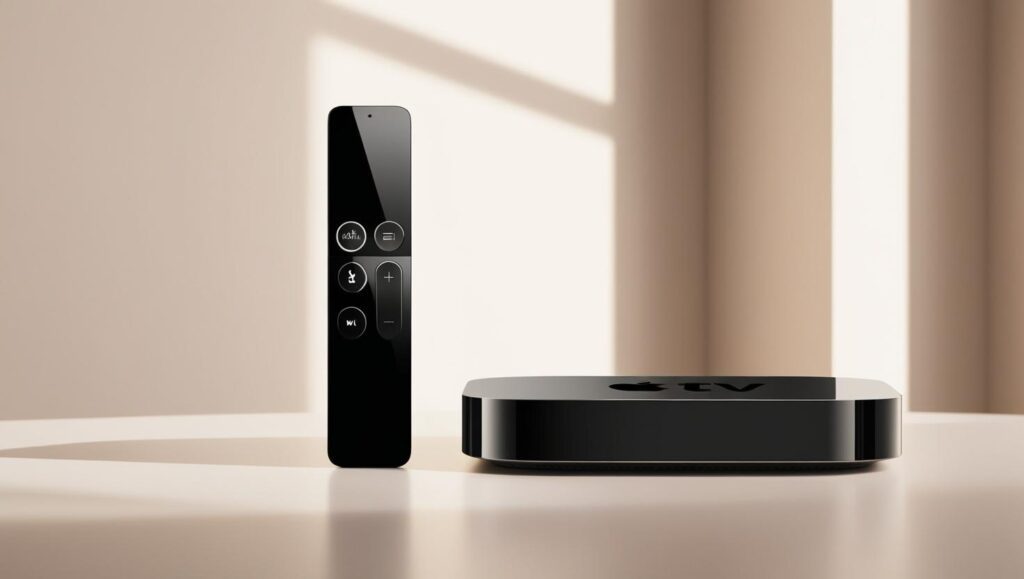
Here are some useful tricks to improve the picture and sound quality on your Apple TV:
Video Configuration of Apple TV
- Adjust resolution and frame rate:
Go to Configuration > Video and audio > Format. Select the highest resolution compatible with your TV, such as 4K HDR, if your TV supports it. Enable the Adjust dynamic range y Adjust frame rate to adapt to the content to avoid synchronization problems. - Color calibration:
Use your iPhone to calibrate the colors. Go to Configuration > Video and audio > Color calibration and follow the instructions to automatically adjust the color balance. - Verify HDMI cables:
Use a high quality HDMI cable, preferably certified as HDMI 2.1, to be able to guarantee a stable signal and maximum quality.
2. Audio Configuration of Apple TV
- Select the correct format:
Go to Configuration > Video and audio > Audio format and choose Dolby Atmos if you have a supported system. Otherwise, select the best supported option, such as Dolby Digital 5.1 o Stereo. - Audio synchronization:
If you notice a lag between audio and video, use your iPhone to correct it. Go to Configuration > Video and audio > Audio synchronization and follow the instructions.
3. Network Settings
- Improved Internet connection:
- It is recommended to use an Ethernet cable connection instead of the Wi-Fi connection to ensure more efficient transmission.
- If you can only use WiFi-Fi, make sure you are connected to the 5 GHz band of your router.
- Make sure your Internet speed is adequate for 4K streaming (at least 25 Mbps).
4. Auto mode for HDR and SDR
- Some TVs have consistently poor HDR handling. Tap the Adapt Dynamic Range option to have Apple TV use HDR only when the content requires it and avoid problems with dull colors or overexposed images.
5. System Cleaning
- Restart the Apple TV device regularlyThis will help clear the cache and keep the device running smoothly.
- Close unused appsPress the button twice Home (TV icon) and slide up the applications you do not use.
6. Use TV Specific Settings
- Game or movie mode:
Activate «Cinema Mode» or equivalent on your TV to get the best possible picture quality.
If you use your Apple TV for gaming, opt for «Game Mode» to reduce lag.
7. Peripheral Enhancement for your Apple TV
- Use an external sound system:
Connect your Apple TV to a Dolby Atmos compatible soundbar, speakers or home theater system or similar. - Set up an Apple HomePod: If you have HomePods, use them as the default audio output in. Configuration > Video and audio > Audio output for a more immersive experience.
With these settings, you can enjoy optimal picture and sound quality on your Apple TV.
Learn more http://Datasystem.es or in https://repararmac.eu/wp-admin/post.php?post=3661&action=edit