
If your HomePod is not responding, follow these steps to fix it.
1. Check the basics
- Check the electrical connection: Make sure it is properly connected.
- Check your Wi-Fi network: Confirm that your device is connected to the same WiFi network as your mobile device.
- Bring your device closer: Keep the cell phone or iPad close to the speaker so that they can connect in sync.
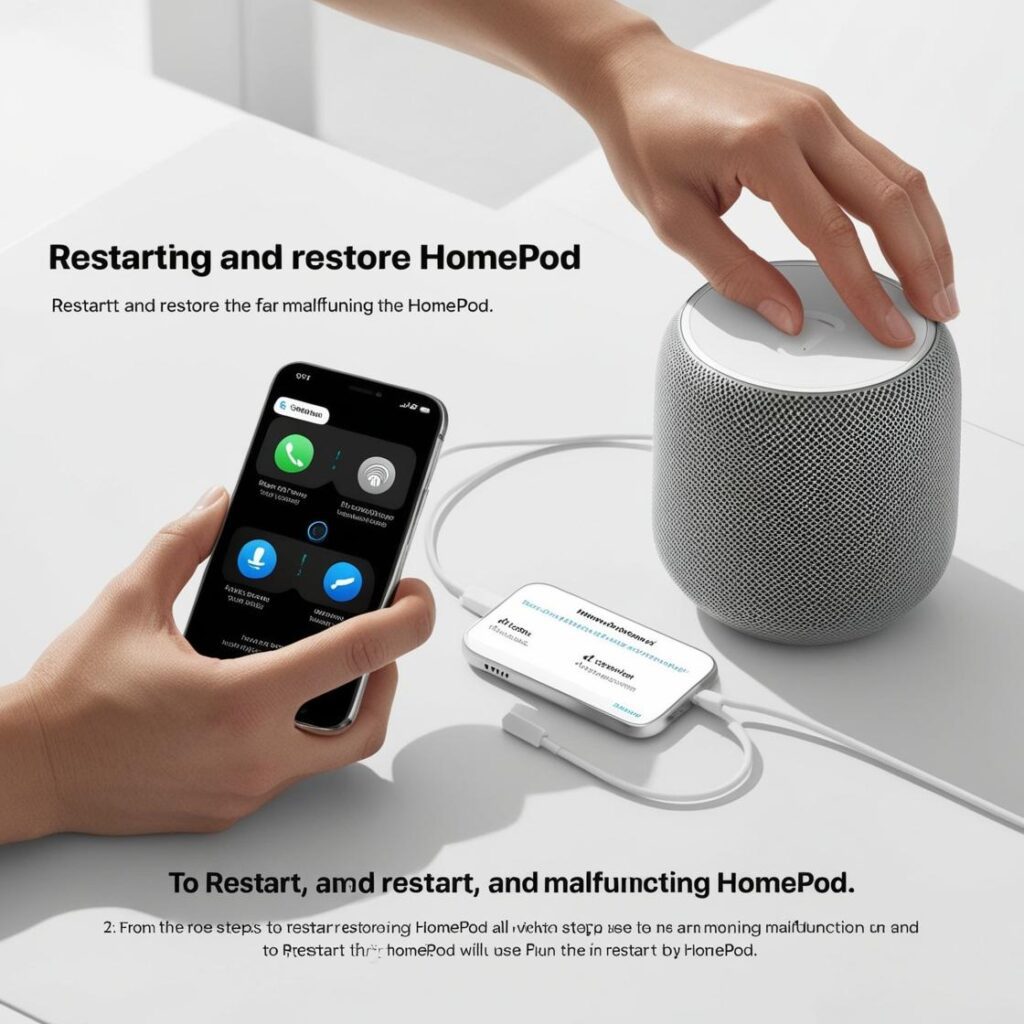
2. Restart your HomePod
If the problem persists, proceed with a restart:
From the Casa app:
- Open the Home application on your iPhone, iPad or Mac.
- Search for your device among those displayed.
- Press and hold the device icon and select «Settings».
- Scroll down and select Reset HomePod.
- Play Restart HomePod.
Physically (if it is a HomePod Mini):
- Disconnect the power cord.
- Wait 10 seconds and reconnect it again.
3. Restore your HomePod
If restarting it does not work, try restoring it to its factory settings:
Restore from the Home app:
- Follow the steps to access the settings.
- Scroll to the Reset option.
- Select Remove accessory to unlink it from your account.
- Reconfigure it from scratch.
Restore with a USB-C cable (HomePod Mini):
- The device is connected to a Mac using a USB-C cable.
- Open Finder (macOS) or iTunes (Windows).
- Select the HomePod Mini option in the sidebar.
- Click on Restore.
4. Update the software
- Go to the application House, Select your device and make sure it is running the latest software version available.
5. Change the location of the device
There are some problems that may be due to Wi-Fi signal interference or your physical location.
- Move the device to a different room, preferably closer to the router.
- Make sure there are no metal objects, thick walls or other electronic devices that may block the signal.
Learn more http://Datasystem.es or in https://repararmac.eu/wp-admin/post.php?post=3661&action=edit