
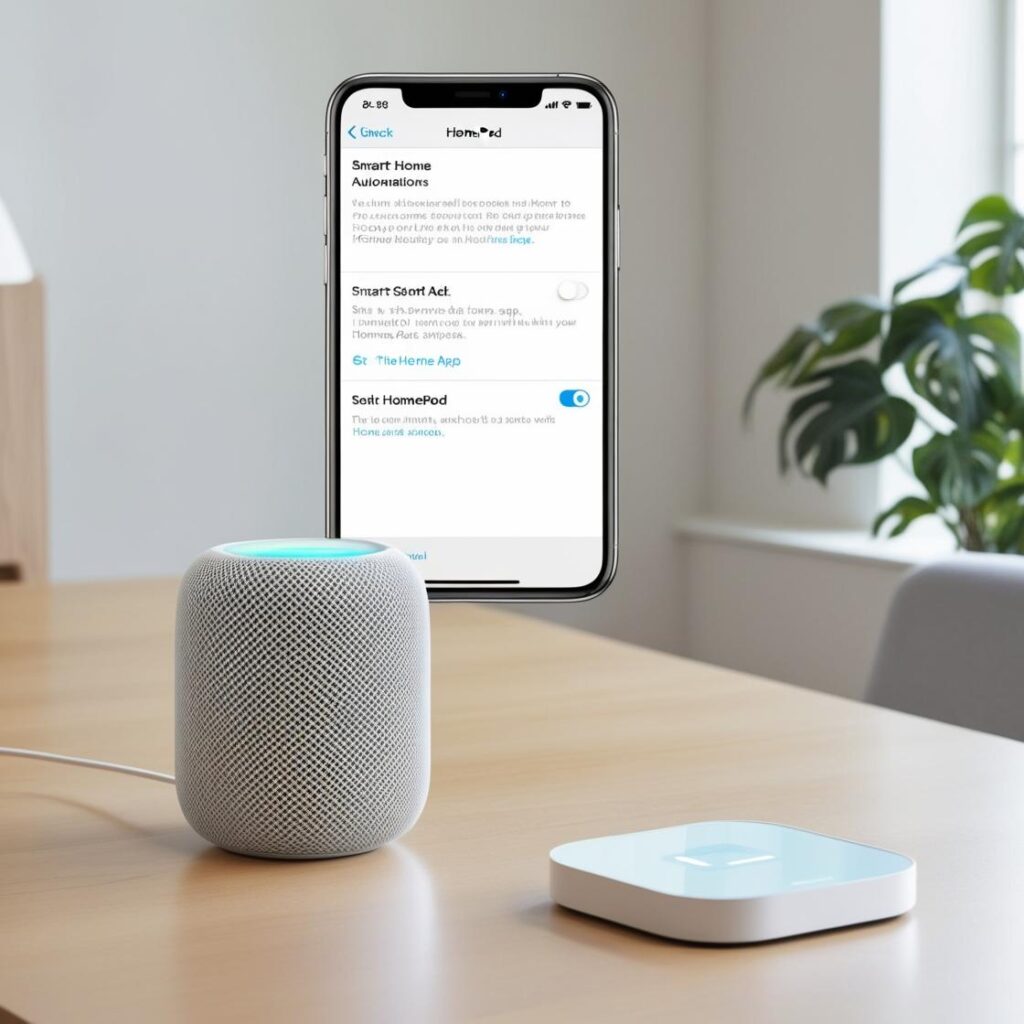
Setting up automations on your HomePod using the Home app is a great way to take advantage of its smart features and improve comfort in your home.
Prerequisites:
- Compatible devices: Make sure you own a HomePod or HomePod mini and HomeKit compatible smart devices.
- App Casa: The Home app must be configured on your iPhone, iPad or Mac with the devices already built in.
- Upgrades: All devices must always be up to date with the latest version of iOS, iPadOS or macOS.
Steps to configure automations:
1. Access the Home app
- Open the application House on your iPhone, iPad, or Mac.
- Make sure you are in the home view, where you can see your devices and rooms.
2. Create a new automation
- At the bottom, select the tab Automation.
- Touch the icon + or select Create new automation.
3. Choose a trigger
Select how you want the automation to be activated:
- When someone arrives or leaves: It is based on the location of a user's device.
- At a specific time: Set actions at a certain time or at a regular schedule.
- When something is detected: It is also related to sensors such as motion or temperature changes.
- Control of an accessory: Activates the automation when another device is turned on or off.
4. Configure devices and actions
- Select which devices or accessories you want to control ( HomePod, lights, thermostats).
- Define specific actions such as playing music, adjusting the volume, or changing the lighting.
5. Adjust the conditions
Establish restrictions such as:
- Automation runs only during the day or night.
- It works only when there are people at home.
6. Test and save the automation
- Test the configuration to make sure everything works as you want it to.
- Click OK to save the automation.
Learn more http://Datasystem.es or in https://repararmac.eu/wp-admin/post.php?post=3661&action=edit