
What to do if your Mac won't start up
Mac computers are not immune to problems. Sometimes, your Mac may not respond to the power button at all, or macOS may crash or not start up properly. Here's what to do if your Mac won't turn on.
The first steps assume that your Mac simply does not respond when you press the power button. If it responds, but does not start correctly, scroll down to the Recovery Mode sections.
Make sure you have energy
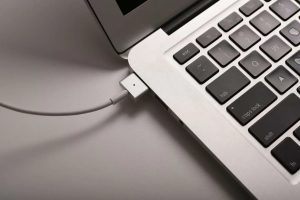
Make sure your Mac is connected to a power source. Try changing the charger or power cord, or use a different power outlet. The charger itself may be damaged. If you're using a MacBook and the battery is completely discharged, you may have to wait a few minutes after plugging it in after turning it on. It may not start up immediately after you turn it on.
Check hardware
Assuming you are using a desktop Mac, check that all cables are securely attached. For example, if it's a Mac Mini, make sure the video output cable is securely connected to both the Mac Mini and the display. Try re-inserting all cables - disconnecting and reconnecting them - to make sure they are securely connected.
Liquid cooling Watercooling or liquid refrigeration is a technique that uses water or a cooling fluid to provide cooling for computer equipment. This system is highly efficient, achieving better computer performance than air cooling systems.
Performing a feeding cycle
SUMMARY:Disconnect power to the modules to solve freezing and other problems.
If your Mac is stuck and not responding to power button presses, you can fix it by turning off the power and force restarting.
On a modern MacBook without a removable battery, press and hold the power button for ten seconds. If your Mac is running, this will force it to shut off power and restart.
On a Mac with a removable battery, turn it off, unplug it, remove the battery, wait ten seconds and reinsert it.
On a Mac (iMac, Mac Mini or Mac Pro), unplug the power cord, leave it unplugged for ten seconds and plug it back in.
Resetting the system management controller firmware
In some cases, you may need to install System Management Controller (SMC) firmware on your Mac. This is the last thing you should try if your Mac does not respond at all when you press the power button.
For current MacBooks without a removable battery, connect the power cord. Press and hold down the Shift + Control + Option keys on the left side of the keyboard and the power key. Release all four keys simultaneously, then press the power key to turn on the Mac.
For MacBooks with a removable battery, unplug the Mac from the power supply and remove the battery. Press and hold the power button for five seconds. Release the power button, replace the battery, plug in your Mac, and press the power button to turn it on.
On Mac desktops, unplug the power cord from the Mac and leave it unplugged for fifteen seconds. Plug it back in, wait five seconds, and press Power to turn the Mac back on.
Using Disk Utility from recovery mode
INCLUDES: 8 Mac system functions that can be accessed in recovery mode
Assuming your Mac starts, but Mac OS X does not load properly, there is probably a software problem. Your Mac's disks may be damaged, and you can fix it from Recovery Mode.
To access the recovery mode, start your Mac. During startup, hold down the Command + R keys. You should try pressing them immediately after hearing the ringtone. The Mac should boot into recovery mode. If it doesn't, you probably didn't press the keys early enough: restart your Mac and try again.
Click on the «Disk Utility» option, click on the first aid tab and try to repair your Mac disk. Disk Utility performs an «fsck» (file system check) operation, so there is no need to run the fsck command manually.
Restore from recovery mode
SUMMARY: How to erase your Mac and reinstall macOS from scratch
If Disk Utility did not work, you can reinstall Mac OS X on your Mac.
Use the «Reinstall OS X» option in recovery mode to have your Mac automatically download the latest OS X installation files and reinstall your operating system. You can also restore from a Time Machine backup. If your Mac's operating system is damaged, this replaces the damaged software with a fresh, undamaged operating system.
If nothing works here - if your Mac won't turn on at all no matter how many times you press the power button, if Recovery Mode doesn't work, or if Mac OS X won't load properly even after reinstalling from Recovery Mode - your Mac is probably having hardware problems.
If you suspect it is under warranty, contact Apple or take it to your nearest Apple Store to have the problem resolved. Even if you are out of warranty, you can take it to an Apple Store or other place that repairs Apple computers and try to get it fixed.
For assistance or more information, please contact repararmac.eu