
Desktop computers are essential for work, education and entertainment. However, like any device, they can experience failures over time. Repairing a desktop computer can be easy if you follow a few key tips. In this article, we offer you a guide to diagnose and fix the most common problems that can arise.
Initial Diagnosis: What's Going Wrong?
The first step in repair is to identify the problem. If your computer won't start, make sure it is properly connected to the power supply. Check that the power cord is properly plugged into both the computer and the power outlet. If everything is in order and the computer still won't turn on, it could be that the power supply is defective.
In case the computer boots but does not load the operating system, the problem could be in the hard disk. A strange noise or lack of response when trying to open programs also indicates hardware failure.
Components to Check
1. RAM memory:
Faulty RAM is a frequent cause of computer crashes. If your computer restarts without warning or displays errors when running applications, it could be due to a RAM failure. Use diagnostic software or replace RAM cards to check their condition.
2. Hard Disk:
If the computer runs slowly or displays error messages when opening files, the hard disk may be damaged. To check it, you can use tools such as «CHKDSK» or specialized programs. If the hard disk is in bad condition, it is best to replace it with a new one.
3. Graphics card:
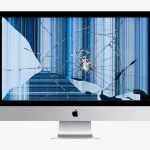
The graphics card is responsible for displaying images on the monitor. If you experience black screens, distorted images or strange lines, the graphics card may be faulty. To confirm, try another monitor or replace it with a new card.
Component Replacement Instructions
Once the damaged component has been identified, follow these steps to replace it:
1. Switch off and disconnect the equipment.
Before making any repairs, make sure that the computer is turned off and disconnected from the power supply. This will prevent accidents.
2. Open the computer case.
Use a suitable screwdriver to open the computer case. Be careful not to damage any of the internal parts.
3. Replace damaged components.
Remove the defective component (such as RAM, graphics card or hard disk) and install the new one. Check that everything is properly connected.
4. Reassemble the computer.
Once the replacement is done, close the housing and make sure all cables are securely connected.
Preventive Maintenance
In addition to repairs, preventive maintenance is essential to prolong the life of your desktop computer. Keep your computer clean and free of dust, especially in the ventilation areas and inside the case. Excessive heat is one of the main causes of computer failure, so good ventilation is essential.
Perform regular software and operating system updates to correct possible vulnerabilities and improve performance. It is also advisable to install an antivirus to prevent infections that can damage your computer.
Conclusion
Fixing a desktop computer does not have to be complicated. If you know how to identify the problem and follow the right steps, you can restore functionality without having to call a technician. In addition, regular maintenance will help prevent future problems and ensure that your computer stays in good condition.
Learn more http://Datasystem.es or in https://repararmac.eu/wp-admin/post.php?post=3661&action=edit