
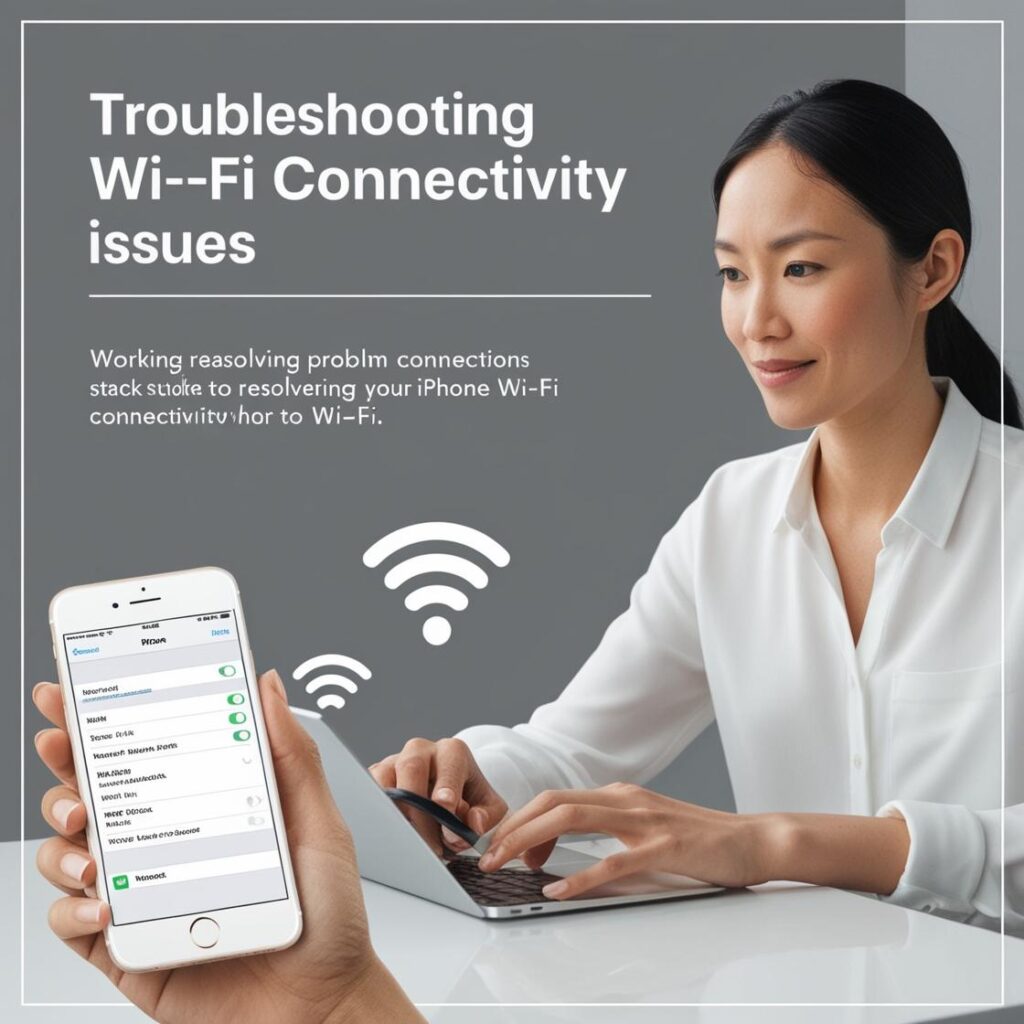
What to do if your iPhone won't connect to Wi-Fi networks: a troubleshooting guide
If your iPhone problems connecting to Wi-Fi networks, don't worry. Here's a guide to fix this problem.
1. Verify that Wi-Fi is enabled
- Check the settings: Go to Settings > Wi-Fi and make sure it is enabled.
- Choose the correct network: Choose the appropriate network from the list and enter the password if needed.
2. Restart your iPhone and router
- Restart the iPhone: Press the power button until you see the power off option. Then turn it back on.
- Restart the router: Turn it off for 10 seconds and turn it on again. This may help resolve temporary connection problems.
3. Forget the network and reconnect
- Go to Configuration > Wi-Fi.
- Tap the «i» icon next to the problematic network.
- Select Forget this network.
- Log in again by entering your password.
4. Check the router configuration
- Distance: Make sure you are within range of the Wi-Fi signal.
- Channels occupied: If the router is on a saturated band (such as 2.4 GHz), switch it to 5 GHz.
5. Update iOS
- Enter in Configuration > General > Software update.
- Download and install all available updates. The latest versions fix known issues.
6. Restore the network configuration
If the above steps do not work:
- Go to Settings > General > Transfer or reset iPhone > Reset > Reset > Reset network settings.
- This will remove saved networks, passwords and custom network settings.
7. Verify possible interferences
- Bluetooth is temporarily disabled, as it may interfere with Wi-Fi.
- Avoid places with many electronic devices that may cause interference.
8. Consultation with technical support
If the problem persists, contact Apple technical support or your Internet service provider to check for hardware or network problems.
By following these steps, you should be able to resolve Wi-Fi connection issues on your iPhone.
Learn more http://Datasystem.es or in https://repararmac.eu/wp-admin/post.php?post=3661&action=edit