
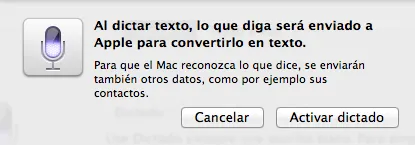
voice dictation
Mac offers a variety of features and tools to make everyday computer use easier and more efficient.
One such feature is voice dictation, which allows users to type text without having to use the keyboard. Although this feature is not well known, it can be a very useful tool for those who prefer to speak rather than type or who have difficulty using the keyboard.
To activate voice dictation, follow these steps:
- Open «System Preferences» from the Apple menu at the top left of the screen.
- Click on «Keyboard».
- Select the «Dictation» tab at the top of the window.
- Activate the «Dictation» option.
- Select a language from the language drop-down menu.
- Enable the «Use enhanced dictation» option to improve speech recognition accuracy.
Once you have enabled voice dictation, you can use it anywhere you can type text on a Mac. You will see a small microphone indicating that dictation is enabled.
As you speak, text will be typed into the text field you are working in. You can use voice commands to add punctuation, change lines or even open applications. Some of the most common voice commands include:
«Period» or «comma»: to add punctuation marks.
«New line» or «Enter»: to change the line.
«Open [application name]»: to open an application.
The voice dictation feature on Mac is a useful and little-known tool that can be very helpful for those who prefer to speak rather than type or who have difficulty using the keyboard. By enabling voice dictation, you can type text using your voice instead of your keyboard, which can save time and reduce finger fatigue. In addition, the Mac voice dictation feature also supports multiple languages, making it a useful tool for those who need to type in different languages.
Our store: https://repararmac.eu/tienda/
Our website: datasystem.com