
Do you have important data to keep safe? Do you want to implement an extra level of security for your Mac? One way to protect your data and increase the security of your device is to encrypt your drive. In this post we will tell you how to do it from your Mac.
Disk Encryption
The disk encryption will be made by FileVault, which is a function for encrypt units that offers you Apple by default. The encryption will be held in background, The computer must be active and connected to the power supply.
To perform the encryption follow the steps below:
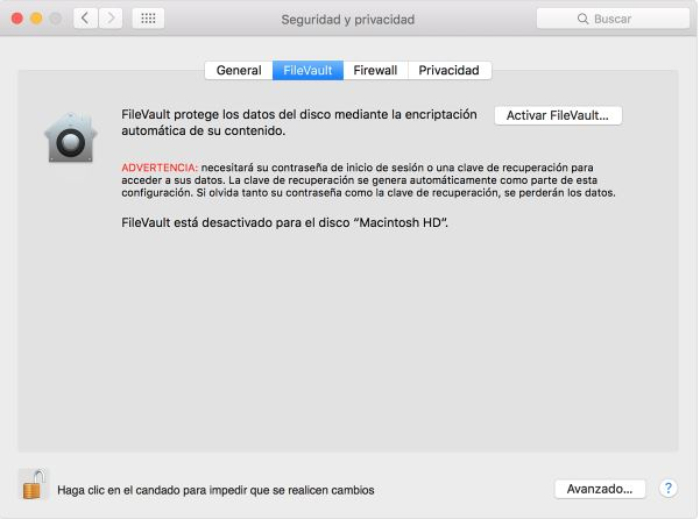
- From the «Apple menu» you will have to go to «System Preferences» and go to the «Security and Privacy» section.
Apple Menu ⇒ System preferences ⇒ Security and privacy - In the section on FileVault, Click on the padlock and enter the details of an Administrator user.
- Then click on «Activate FileVault«.
At case that there is more accounts on your Mac, The other users will have to enter their data to be able to unlock the disk (in this case you will see a specific tab with a list of users).
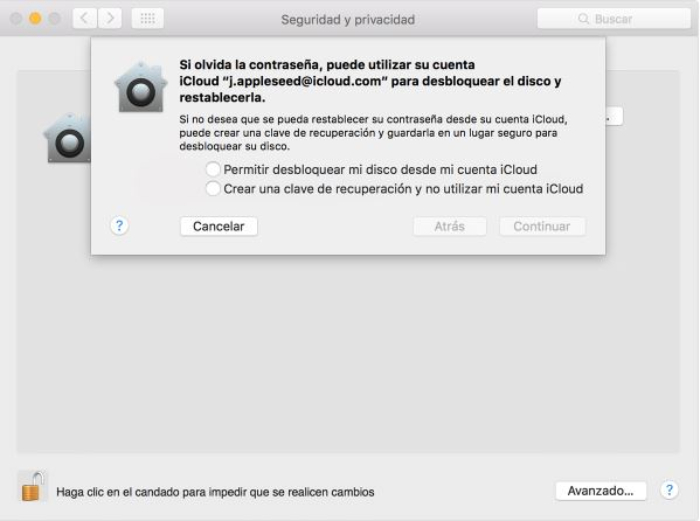
There is two ways in the one you prefer to use for unlock and reset your password. You will have the following forms:
- You can do this by means of a iCloud account.
- The other option is generate a recovery key, The data must be kept in a safe place that cannot be accessed by third parties.
If you are using OS X Yosemite or later will be the first option via your iCloud account.
If you are using OS X Mavericks you will be able to store a FileVault recovery key, providing three questions and their answers for recovery.
In case you want to change the recovery key, you will have to disable FileVault.
In case of forget or lose If you do not enter your account password and FileVault recovery key, you will not be able to log in to your Mac or access the data on its startup disk.
Disable FileVault
In case you want to remove the encryption because you no longer need it or want to change the recovery key, you must follow the steps below:
- From the «Apple menu» you will have to go to «System Preferences» and go to the «Security and Privacy» section.
Apple Menu ⇒ System preferences ⇒ Security and privacy - In the section on FileVault, Click on the padlock and enter the details of an Administrator user.
- Then click on «Disable FileVault«.
- If you have any questions about the content of this article or any other questions about Mac please contact us here.
If you have any questions about the content of this article or any other questions about Mac, please contact us. here. Or in http://Datasystem.es