
If you have AirPods and have noticed that they disconnect or the sound is not clear, don't worry. These problems are common, but they can be solved. Here are some easy steps you can take to fix these issues and enjoy a better listening experience.
Verify Bluetooth connection
The first thing you should do is make sure your device's Bluetooth connection is working properly. If your AirPods are not connected properly, they may disconnect or not sound right. To check this, go to the Bluetooth settings on your phone or computer and make sure your AirPods are connected.
If you don't see AirPods in the list of devices, try turning Bluetooth off and on. If you continue to have problems, try disconnecting other nearby Bluetooth devices, as they may interfere with the signal.
2. Update your AirPods software.
Sometimes, sound or disconnection issues are caused by outdated AirPods software. Apple releases updates to improve performance and fix problems. Make sure you have the latest software version.
To update your AirPods, simply connect your AirPods to your iPhone and verify that they are charged. Updates are automatically installed when they are in charging mode and connected to your device.
3. Clean the AirPods
Sound may be affected by dirt or wax on the AirPods. If you don't hear well, be sure to clean the grills on the earphones. Use a soft, dry cloth and a small brush to remove any dirt or dust. Do not use liquids, as they can damage the devices.
If you are having problems with sound quality, a proper cleaning can dramatically improve the performance of your AirPods.
4. Reset AirPods
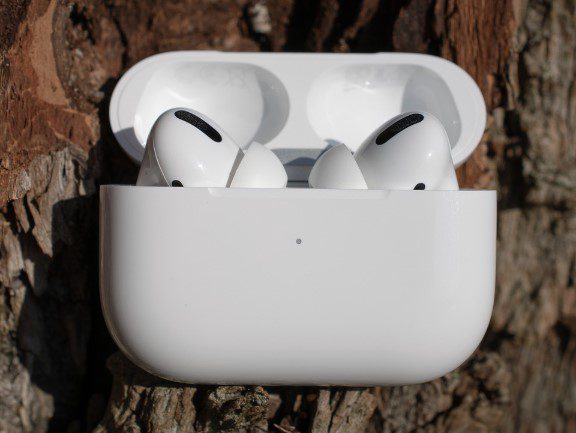
If none of this works, resetting the AirPods to their factory settings may be an effective solution. To do this, place the AirPods in their case and open the lid. Then, press the button on the back of the case until the yellow light flashes. This means that the AirPods have been reset.
After doing so, connect the AirPods back to your device and check if the problem persists.
5. Make sure you are close to your device
AirPods have a limited Bluetooth range, so if you are too far away from your phone, computer or tablet, they may disconnect. Try to stay within a range of about 10 meters and avoid large obstacles, such as thick walls, which can interfere with the signal.
If there are too many obstacles between the device and the AirPods, this can affect both the sound quality and the connection.
6. Adjust the equalizer
If the sound from your AirPods is not clear, you can try adjusting the equalizer on your device. On an iPhone, go to Configuration > Music > Equalizer and select an option you like. Some settings can enhance the bass or treble, which can make the sound clearer and more pleasant.
7. Check the battery status
Finally, make sure that the AirPods and their charging case are properly charged. If the AirPods are low on battery, the sound may become intermittent or of poor quality. Charge your AirPods fully and check that the case also has enough charge to avoid disconnection issues.
By following these tips, you should be able to enjoy your AirPods without interruptions or sound problems. If the problem persists, you may need to contact Apple support for additional assistance.
Learn more http://Datasystem.es or in https://repararmac.eu/wp-admin/post.php?post=3661&action=edit