
Master Your Time: Apple's Master Calendar Guide for Elite Productivity
Transform your Apple ecosystem into your personal assistant. Learn how to sync, organize and collaborate like a pro.
Total Synchronization
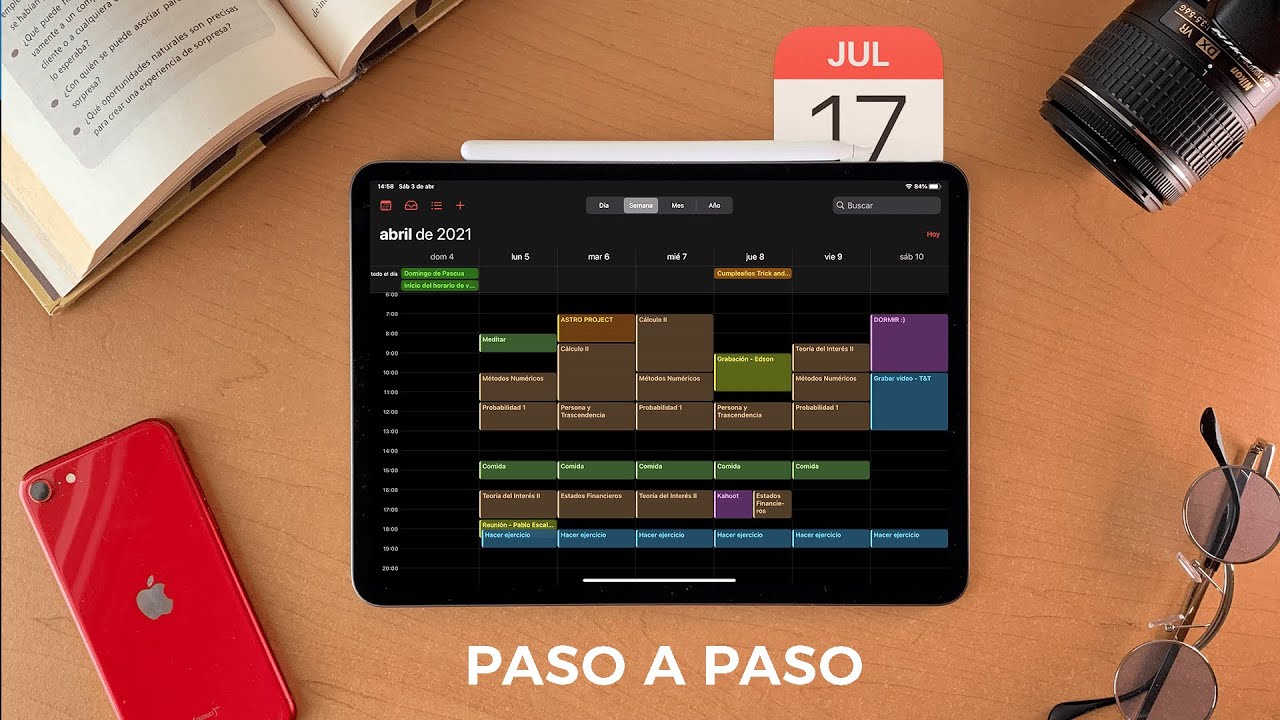
Thanks to iCloud integration, your events are synchronized in real time between your iPhone, iPad and Mac. Any changes you make are instantly reflected on all your devices, ensuring that your schedule is always with you, wherever you are.
Visual Organization
Don't mix your personal and professional life. Assign specific colors to different calendars Work, Leisure, Family. This visual hierarchy allows you to understand your daily availability with just a quick glance at the screen.
Siri
Hands-free management is the ultimate level of productivity. Just say: Siri, add client meeting tomorrow at 10 AM, and your calendar will take care of the rest without you having to stop what you're doing.
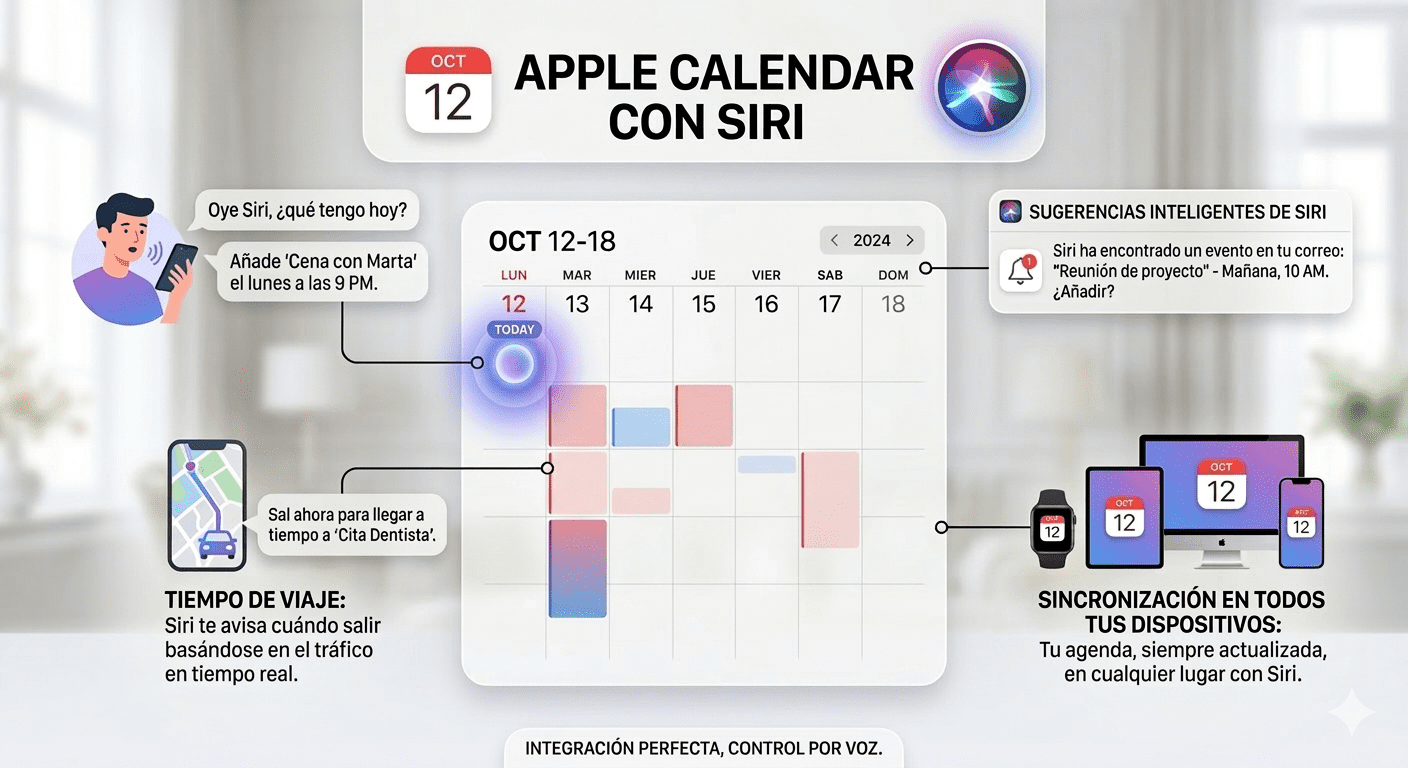
More than Events: Reminders and Intelligent Collaboration.
Apple Calendar has evolved to become the nerve center of your work. You no longer just schedule appointments; you manage your life:
Visualize your reminders next to your free slots for realistic planning.
Share entire calendars with one click. Ideal for families coordinating schedules or teams that need agility without endless email chains.
Frequently Asked Questions
Question 1: Why doesn't my Apple Calendar sync on all my devices?
Response: The most common cause is an incorrect iCloud configuration. Make sure that all your devices have the same Apple ID account and that the Calendars option is enabled in Settings > iCloud. If the problem persists after a macOS or iOS update, it may be a system cache error that requires technical intervention.
Question 2: Can I integrate Apple Calendar with Google Calendar or Outlook?
Response: Yes! Apple allows you to add external accounts. Just go to Settings > Calendar > Accounts and add your Gmail or Outlook email. All your events will appear in a single view, keeping your organization unified.
Question 3: What do I do if I have accidentally deleted an important event?
Response: You can retrieve deleted calendars from the iCloud.com website in the section Data recovery. However, if the error is at the Mac software level or there is a massive data loss, it is advisable to perform an immediate backup.
Question 4: Is it safe to share my calendar with other users?
Response: It is totally secure. Apple uses end-to-end encryption. You can choose whether guests can only view or also edit events, giving you full control over your privacy.