
Trackpad gestures in macOS are powerful tools that can make you work faster and more efficiently. You can customize them according to your needs by following these procedures:
How to customize trackpad gestures on your Mac
- Open System Preferences:
- Click on the apple icon in the upper left corner of the screen and select the System Preferences (o System Configuration on macOS Ventura and later versions).
- Select «Trackpad».»:
- Search for the option Trackpad in the configuration menu.
- Explore the configuration tabs:
- You will see three main tabs:
- Point and click: Configures the way you interact with clicks, taps and drags.
- Scrolling and zoomingAdjust actions such as scrolling with two fingers and zooming with a pinch.
- More gesturesConfigure advanced gestures, such as switching desktops or opening the notification center.
- You will see three main tabs:
- Enable or disable gestures according to your preference:
- Activate or deactivate the gestures by using the corresponding switch.
- If you need a demonstration, hover over each gesture and an animation will be displayed explaining how it works.
- Customize advanced features:
- Some gestures allow you to select different actions for the same gesture. For example, the «three-finger swipe» can be used to display applications in Mission Control or to switch between desktops.
Recommended gestures to optimize work
- Show desktop:
- Slide four fingers out in order to reduce the windows and display the desktop.
- Switching between open applications:
- Slide three fingers to the left or right.
- Intelligent zoom:
- Double-tap with two fingers to zoom into a web page or document.
- Open Mission Control:
- Swipe up with three or four fingers to see all open windows and desktops.
- Switching between desktops:
- Slide with three fingers to the left or right.
- Notification center:
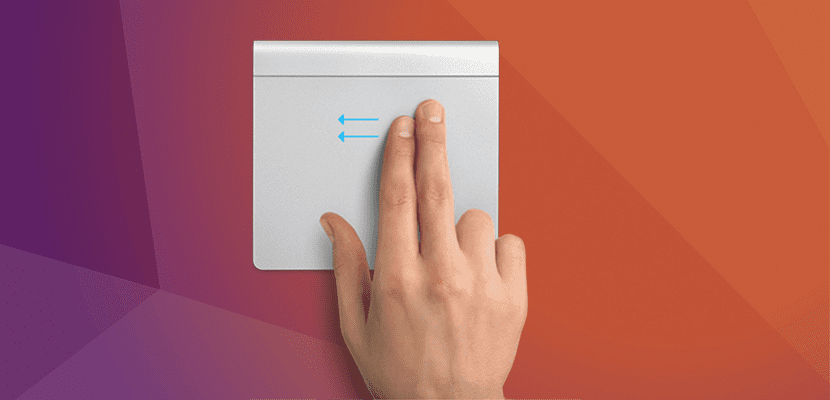
- Swipe to the left from the right edge of the trackpad with two fingers.
Bonus: Adding shortcuts with third-party apps
If the default options do not meet your needs, it is feasible to use applications such as BetterTouchTool o MagicPrefs in order to create custom gestures. These tools allow you to set specific actions in combinations of taps, swipes and clicks.
With these settings, your trackpad will be a key tool to work faster and more comfortably.
Learn more http://Datasystem.es or in https://repararmac.eu/wp-admin/post.php?post=3661&action=edit