
Backups are essential for safeguarding important data against potential loss due to system problems, cyberattacks, human error, or natural disasters. Below, I will outline their importance and how to perform them properly:
Why are backups important?
- Protection against data loss:
- Hardware or software issues can lead to the loss of essential data.
- The spread of viruses, ransomware, or cyberattacks can encrypt or delete data.
- Safety in case of human error:
- Accidentally deleting files or mistakenly modifying documents are common difficulties.
- Operational continuity:
- For businesses, backups provide the opportunity to quickly restore systems after a problem, avoiding financial losses.
- Disaster protection:
- In the event of fires, floods, or other physical events, external backups ensure data preservation.
How to make effective backups?
- Choosing the right method:
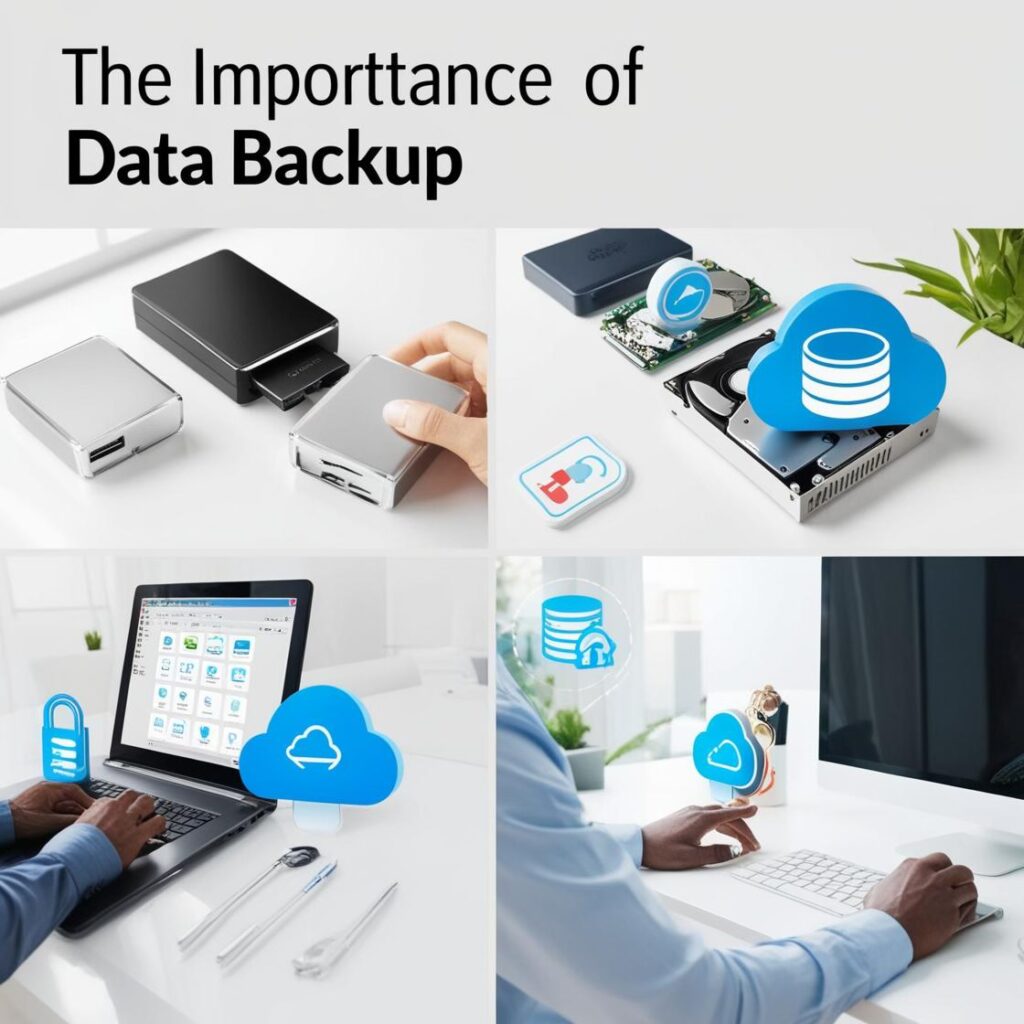
- Location: Store files on physical devices, such as external hard drives, USB drives, or internal servers. It is fast and accessible, but subject to physical damage.
- In the cloud: Availability of services such as Google Drive, Dropbox, OneDrive, or specific backup solutions. Access is provided through remote devices and excellent security.
- Hybrid: The combination of local and cloud-based techniques allows for greater protection.
- Establish a regular frequency:
- Daily: Ideal for data that changes frequently, such as working documents.
- Weekly or monthly: Sufficient for less critical data.
- Follow the 3-2-1 rule:
- To have 3 copies of the data: the original and two backups.
- Store them in two different ways (hard drive and cloud, for example)
- Keep a copy in an external location for the purpose of protecting yourself from risks.
- Automate the process:
- Configure programs such as Acronis, EaseUS Todo Backup, or native tools such as Windows Backup to generate copies automatically.
- Verify the integrity of backups:
- Regularly verify that the backed-up data is accessible and continuously updated.
- Protect copies:
- Encrypt copies, especially if they are stored in the cloud or on external devices, to prevent unauthorized access.
Basic example of a backup in Windows:
- Connect an external hard drive.
- Go to Settings > Update & Security > Backup.
- Enable «Add a drive» and select your disk.
- Set up a schedule for automatic backups.
Example in the cloud with Google Drive:
- Install the Google Drive desktop app.
- Synchronize your most important folders.
- Ensure that they are automatically uploaded to the cloud.
Learn more http://Datasystem.es or in https://repararmac.eu/wp-admin/post.php?post=3661&action=edit