
Do you have smart devices and don't know how to configure them? Don't worry. In this article, we show you how to do it step by step in the Casa app. With this app, you can control everything from lights to thermostats and much more, all from your mobile. Follow these simple steps and turn your home into a more comfortable and efficient place.
What is the Casa app?
The Home app is an Apple tool that lets you control all your smart devices from one place. You can add and manage devices like smart light bulbs, security cameras, thermostats and more. Plus, you can set them up to work together to make your life easier.
Step 1: Open the Home app
The first thing to do is to open the Home app on your iPhone or iPad. If you don't have it installed, download it from the App Store. When you open it, you will see the main screen showing all the devices connected to your network.
Step 2: Add a new device
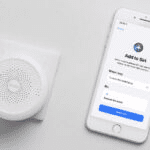
To add a smart device, tap the «+» icon in the upper right corner. Then select “Add accessory”. Make sure the device you want to add is turned on and in pairing mode. Many devices have a QR code that you can scan with your iPhone camera.
Step 3: Scan the QR code
When you scan the QR code on your device, the Home app will automatically detect it. If your device does not have a QR code, look for the accessory in the list that appears on the screen. Select the one that corresponds to your device.
Step 4: Configure the device
Once the device is detected, the Home app will ask you to give it a name. Choose a name that is easy to remember, such as “Living room lamp” or “Main thermostat”. You can also assign it to a specific room, such as the living room or bedroom.
Step 5: Customize settings
When configuring the device, you can adjust options such as light intensity, temperature or schedules. Some options also allow you to create automations, such as turning on the lights at dusk or turning off the air conditioning when you leave the house.
Step 6: Use Siri to control your devices
One of the advantages of using the Home app is the integration with Siri. You can control your devices by simply saying “Hey Siri, turn off the living room lights” or “Hey Siri, adjust the thermostat”. This makes controlling your smart home even easier.
Step 7: Verify the connection
To make sure everything is working properly, test each device you have added. Check if it responds to commands from the app or Siri. If any device does not connect, check that it is within range of your Wi-Fi network and that the connection is stable.
Additional tips to optimize the Home app
- Create automationsThe Home app allows you to set up automatic actions. For example, you can have the thermostat turn off when you leave the house or turn on the lights when you arrive.
- Organize your devicesGroup the devices by room to facilitate their control.
- Keep your network secure: Make sure your Wi-Fi network is secured to prevent unauthorized access to your smart devices.
Conclusion
Setting up your smart devices in the Home app is quick and easy. By following these simple steps, you can control all your devices from your iPhone or iPad. Enjoy the convenience of home automation and customize your space the way you like it.
Learn more http://Datasystem.es or in https://repararmac.eu/wp-admin/post.php?post=3661&action=edit