
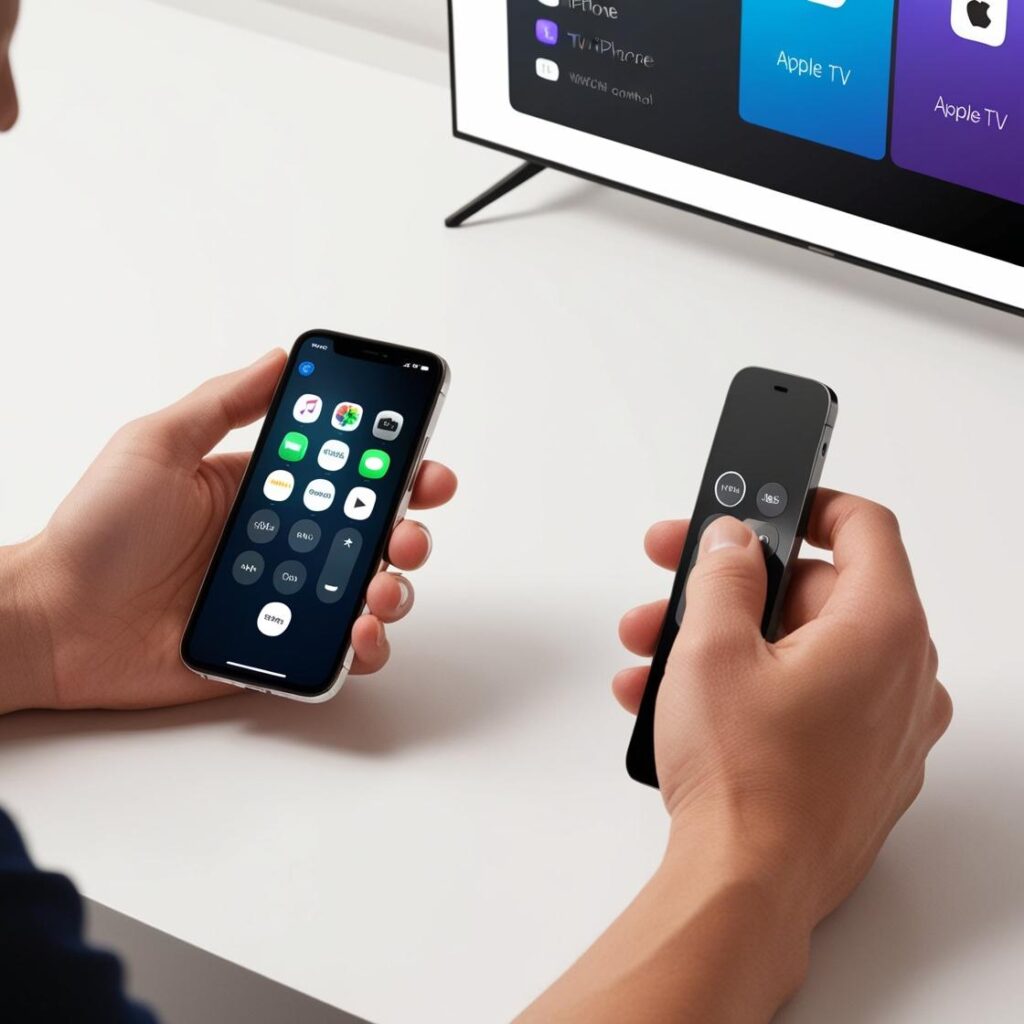
Using your iPhone as a remote control for Apple TV is a handy feature. Follow these steps to set it up and get the most out of it:
Initial configuration of the iPhone
- Make sure your iPhone and Apple TV are connected to the same Wi-Fi network.
- Activates the remote control function on the iPhone:
- Go to Configuration > Control center.
- Search for Apple TV Remote and tap it to add it to the control center (if not already added).
- Open the remote control:
- Swipe down from the upper right corner of the screen (or up on older models).
- Touch the icon of the Apple TV Remote.
Connecting to Apple TV
- Select your Apple TV in the list of devices.
- Enter the code that appears on your Apple TV on your iPhone.
Using the iPhone as a remote control
- Navigation: Use the touch screen of the remote control on your mobile device to swipe and select.
- Play/pause: Touch the play/pause to control the content.
- Keyboard: When you want to type, use the iPhone keyboard to enter text quickly.
- Siri: Press and hold the microphone button to use voice commands with Siri.
- Volume: Adjust the Apple TV volume directly from the physical buttons on your device, if it is synchronized with the compatible audio system.
Tips for effective use
- Use voice commands: Ask Siri to play content, search for programs or adjust settings.
- Take advantage of the keyboard: Useful for entering passwords or for long searches.
- Background control: You can control the Apple TV device while using other applications on your device.
- Customize shortcuts: If you use the remote control often, be sure to place it in an accessible position in the Control Center.
If you have connection problems, verify that both devices are up to date and on the same network. Enjoy the convenience of controlling your Apple TV with your iPhone!
Learn more http://Datasystem.es or in https://repararmac.eu/wp-admin/post.php?post=3661&action=edit